
Splio OneSignal Connector
Trigger personalized Push notification messages from your Splio Campaigns through our integration with OneSignal.
Provided by: Splio & Partner Connector type: Destination Third-party system: Channels Required license or add-on: : "Marketing Automation"

Introduction
Splio now supports Push Notifications as a messaging channel, powered by OneSignal. This allows you to send push notifications to your contacts' mobile devices (iOS, Android) and web browsers (coming soon) directly from Splio, using the same campaign workflow you already know for email and SMS/RCS.
You need to be on the Splio Edition 2025 version to have the Push Notification option and therefore be able to connect OneSignal and Splio.
Setup process
Technical guide for connecting a client's App and OneSignal account to the Splio platform (Marketing Automation).
Checklist
- Client has an active OneSignal account
- Client has an active Splio Marketing Automation universe and is on the Splio Edition 2025
- Client has the Push notification feature flag active on Splio
- Client's SDK is configured with OneSignal
- Client's OneSignal App ID available (OneSignal → Settings → Keys & IDs)
- Client's OneSignal REST API Key is available
Step 1 — Configure the OneSignal platform credentials and SDK on the client App
- Follow the OneSignal documentation to setup the platform credentials and SDK
- Ensure that the Splio customer key is matched with the OneSignal External ID
- The
external_idin OneSignal corresponds to theunique_keyin Splio - Example: if
external_id = email, the app must callOneSignal.login("[email protected]")- Recommended to use
OneSignal.login("[email protected]", jwt) - if your Splio
unique_keyis a custom field, e.g. c0, then the app must callOneSignal.login("<c0>", jwt)
- Recommended to use
- Without this, push events cannot be matched back to Splio contacts
- The
Step 2 — Register the App in Splio
- Open the Splio universe
- Navigate to General Settings → Integrations → OneSignal
- Click Add an app and fill in:
| Field | Value | Source |
|---|---|---|
| Name | Free text label to identify the app | — |
| App ID | OneSignal application identifier | OneSignal → Settings → Keys & IDs |
| API Key | OneSignal REST API key | OneSignal → Settings → Keys & IDs |
-
Save
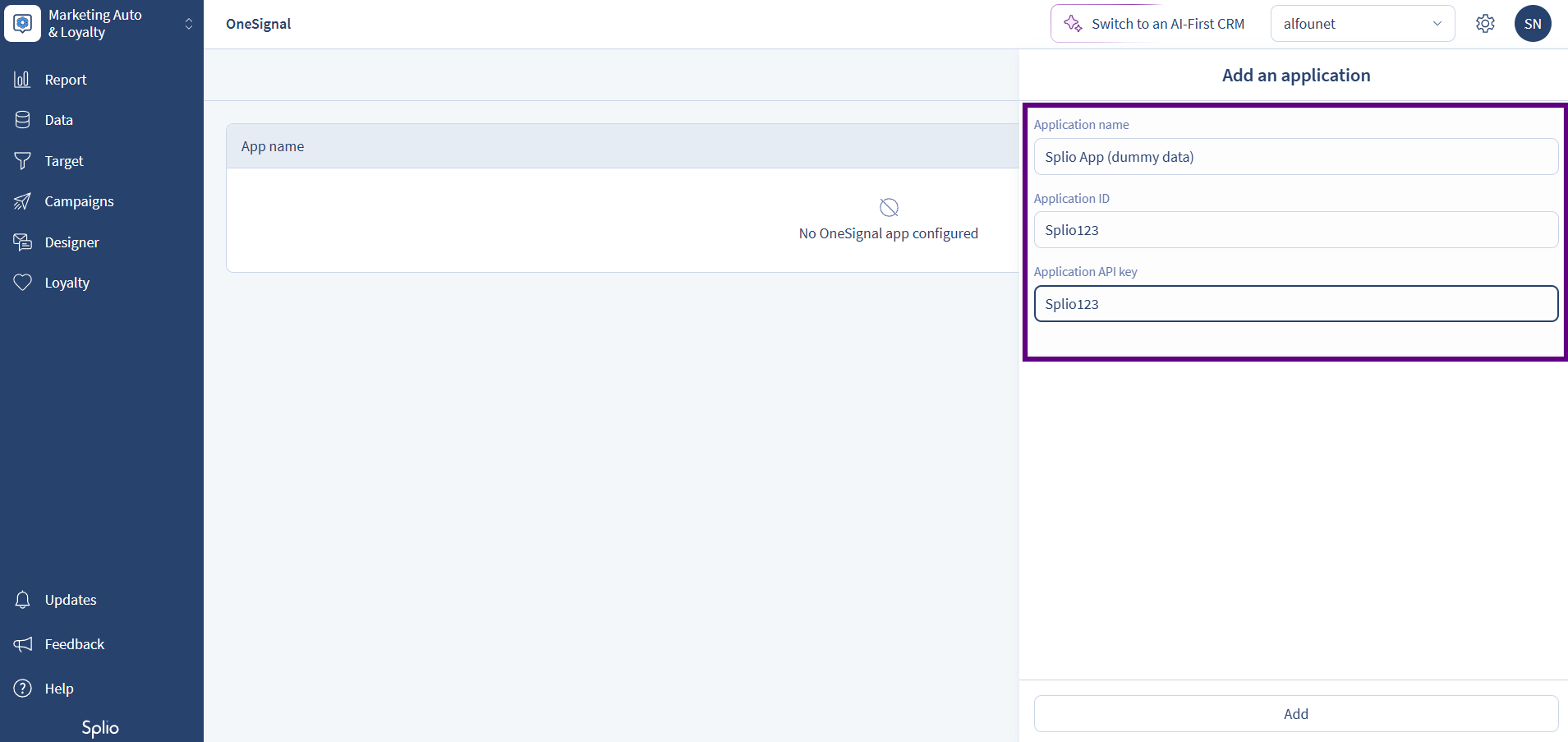
The API Key is encrypted at rest by Splio. Never share it in tickets, chat, or documentation.
You can edit or delete apps from this page. One app per universe is supported.
Step 3 — Copy the Generated JWT
On successful app creation, Splio automatically generates a JWT (JSON Web Token). This token authenticates OneSignal when it calls back into Splio via the webhook.
- Copy the JWT displayed (needed to unlock Step 4)
- You can always revoke the JWT generated
Step 4 — Configure the Event Stream in OneSignal
In the OneSignal dashboard, go to Data → Event Streams → New Event Stream.
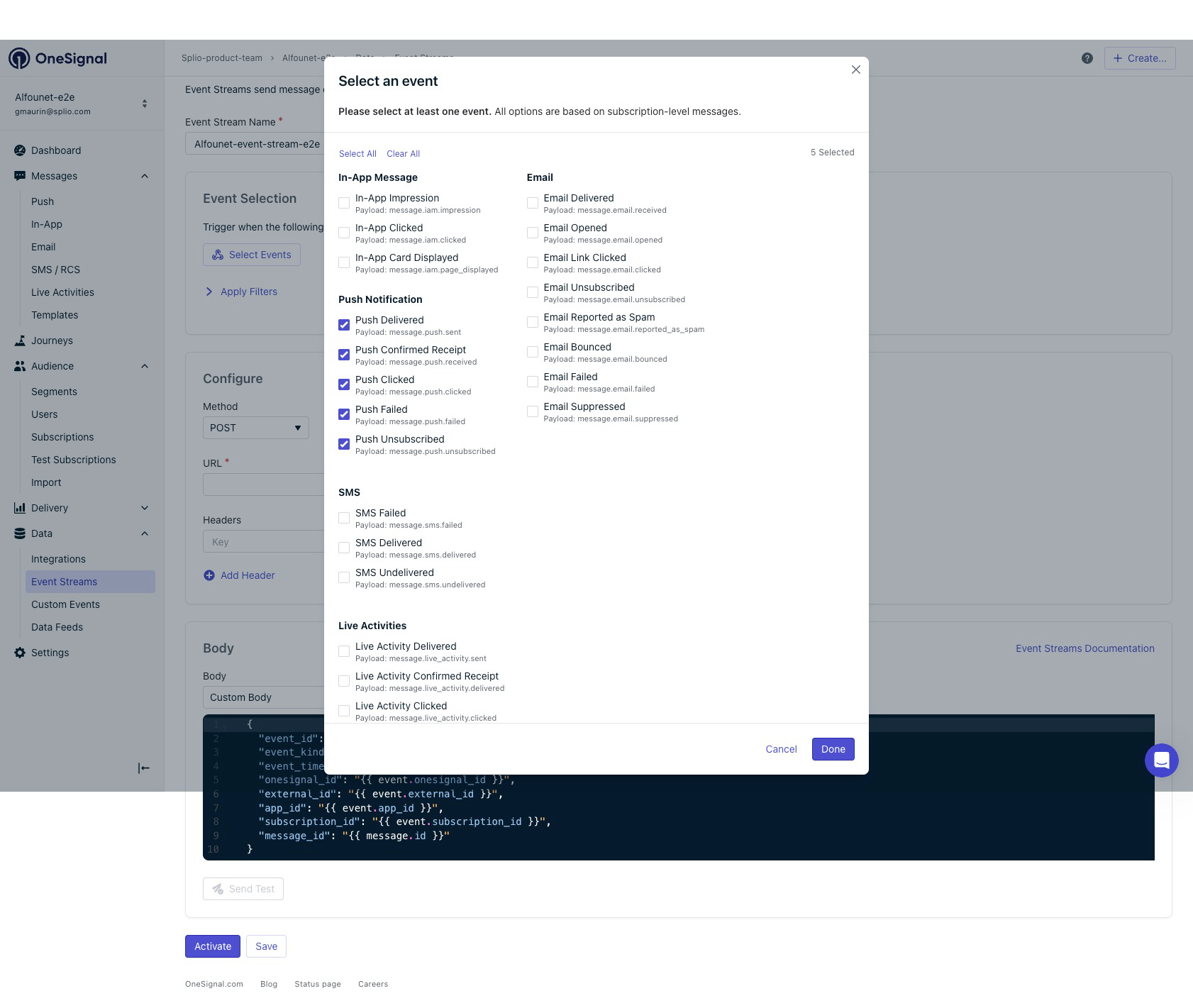
4.1 — Select Events
Choose the push events to forward to Splio:
| Event Kind | Description |
|---|---|
message.push.sent | Push sent to delivery services (FCM/APNS) |
message.push.received | Push received by device |
message.push.clicked | User tapped the notification |
message.push.failed | Push delivery failed |
message.push.unsubscribed | User unsubscribed from push |
Only select events you actually need — each event counts toward OneSignal's message-event volume.
4.2 — Configure the Endpoint
| Setting | Value |
|---|---|
| Method | POST |
| URL | https://webhooks.splio.com/webhooks/v1/push-notification/events |
4.3 — Set Headers
| Header | Value |
|---|---|
Content-Type | application/json |
Authorization | Bearer <jwt-from-step-3> |
4.4 — Set Custom Body
Under Body, select Custom Body and paste the Liquid template that maps OneSignal fields to the Splio expected payload format.
Liquid template (click to expand)
The template maps the following OneSignal fields to Splio's internal event schema:
{
"event": {
  "kind": "{{ event.kind }}",
  "id": "{{ event.id }}",
  "timestamp": {{ event.timestamp }},
  "failure_reason": "{{ event.data.failure_reason }}"
},
"message": {
  "id": "{{ message.id }}",
  "name": "{{ message.name }}"
},
"user": {
  "onesignal_id": "{{ user.onesignal_id }}",
  "external_id": "{{ user.external_id }}",
  "subscription_id": "{{ event.subscription_id }}",
  "subscription_device_type": "{{ event.subscription_device_type }}",
  "device_model": "{{ user.subscription.device_model }}",
  "deviceOs": "{{ user.subscription.device_os }}",
  "language": "{{ user.subscription.language }}",
  "subscribed": {{ user.subscription.subscribed }},
  "sdk": "{{ user.subscription.sdk }}"
}
}
4.5 — Save
Save the Event Stream configuration.
Step 5 — Test the Connection on OneSignal
-
Go to Data > Event Streams and activate the appropriate stream
-
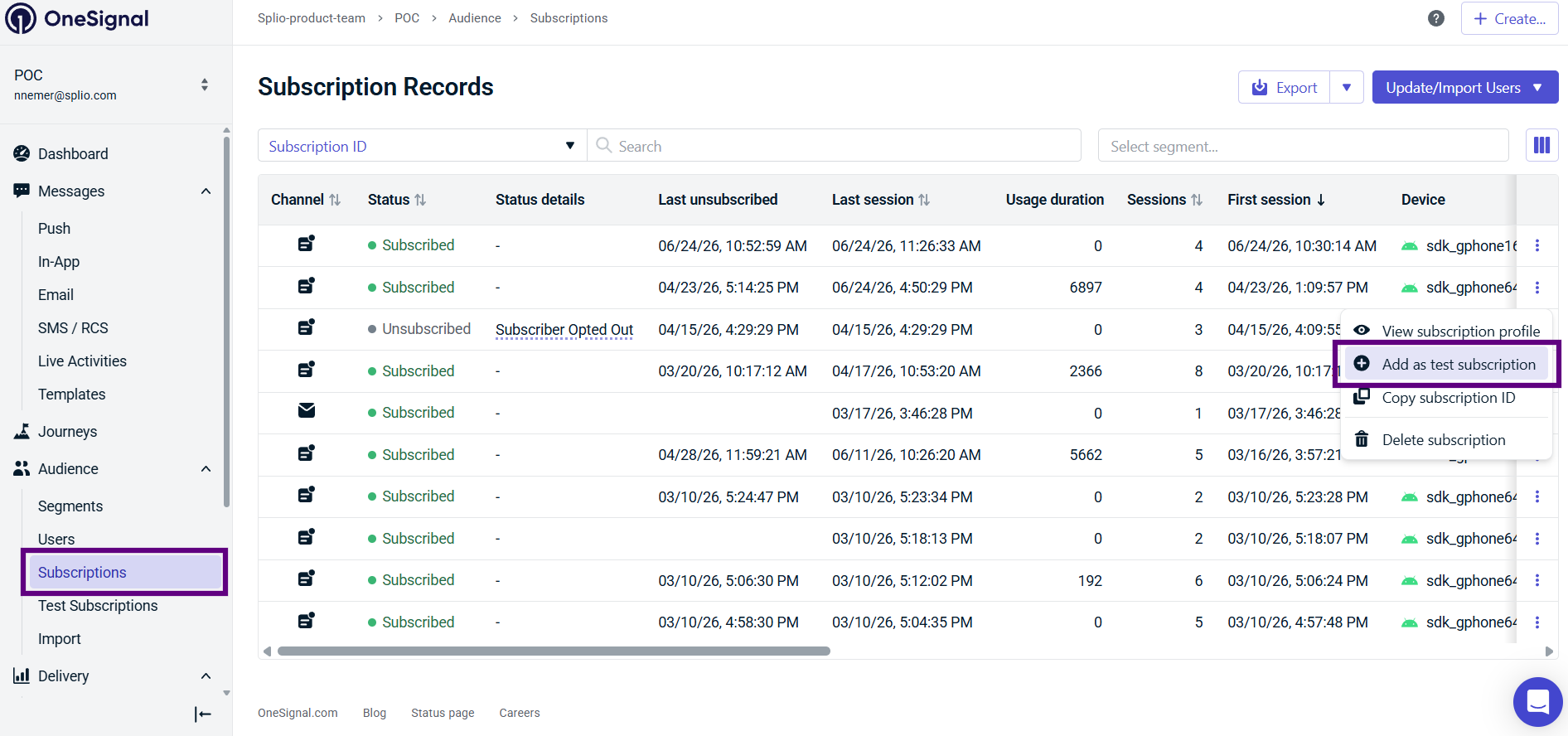
Go to Audience > Subscriptions, choose a contact, and add them as a tester (select as "Add as test subscription")
-
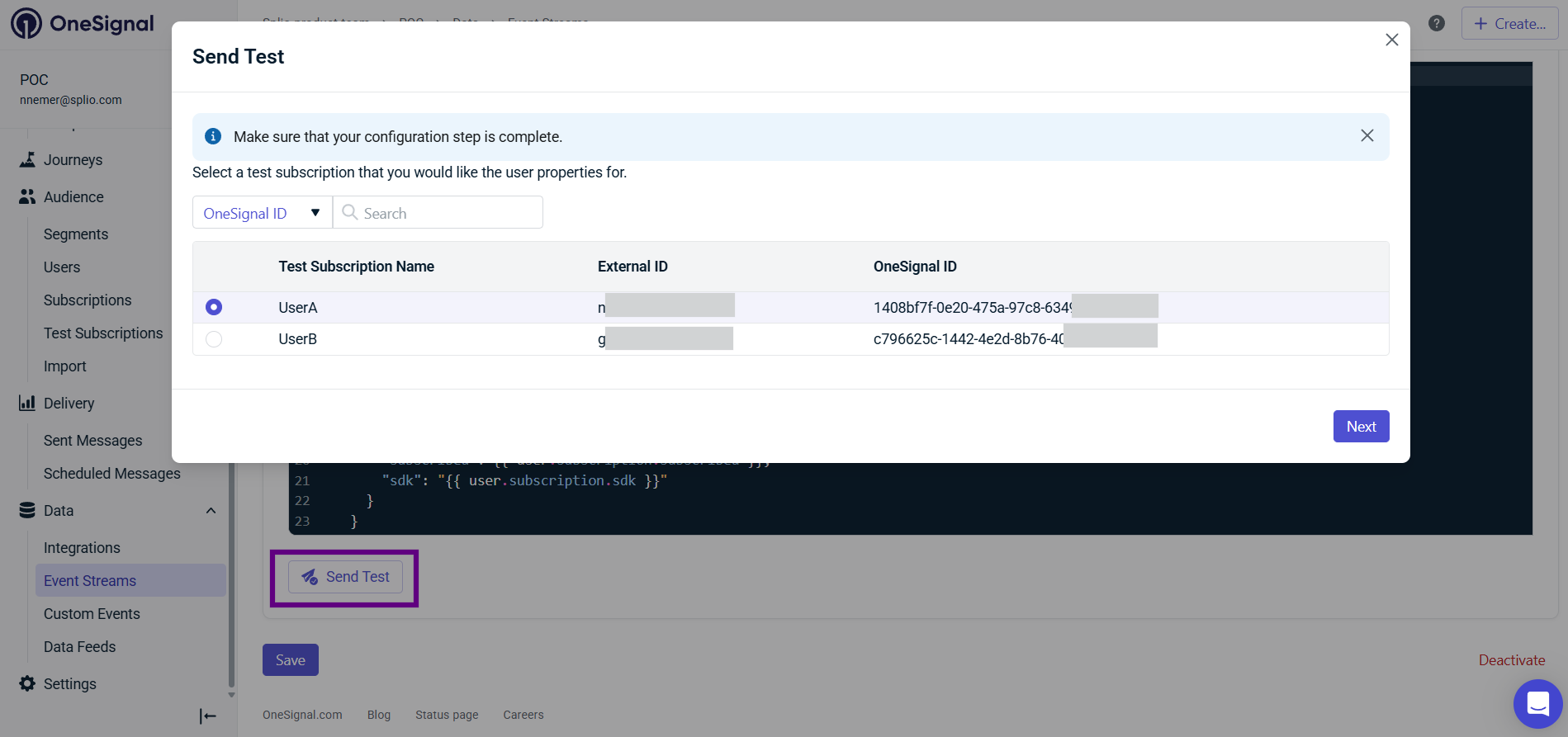
In the OneSignal Event Streams > click on Edit > use Send Test to fire a sample request
-
Send a real test push from OneSignal to a test device
-
Check the Logs tab in OneSignal — a
2xxresponse means Splio received it
Architecture Overview
┌──────────────┐         ┌──────────────────┐          ┌──────────────────┐
│   CLIENT     │   SDK   │    ONESIGNAL     │  Events  │      SPLIO       │
│  (App/Web)   │────────▶│  (Push Provider) │─────────▶│   (sp-ring)      │
│              │         │                  │◀─────────│                  │
└──────────────┘         └──────────────────┘  Send    └──────────────────┘
                                │                              │
                                │ Delivers to                  │ Sends campaign
                                ▼                              │ via OneSignal API
                         ┌─────────────┐                       │
                         │   Device    │◀──────────────────────┘
                         │ iOS/Android │
                         │    /Web     │
                         └─────────────┘
Event flow:
- Splio triggers a push campaign → calls OneSignal Messaging API
- OneSignal delivers the push to the contact's device(s)
- OneSignal generates events (sent, received, clicked, failed, unsubscribed)
- Events are forwarded to Splio via the webhook (Event Stream + JWT auth)
- Splio enriches events, updates statistics, and handles unsubscribes
Troubleshooting
| Issue | Cause | Fix |
|---|---|---|
| Events not received in Splio | JWT missing or invalid in Authorization header | Regenerate JWT on the Splio Admin Settings and update Event Stream in OneSignal |
| Contact not matched | External ID not set in OneSignal SDK | Client must call OneSignal.login(external_id) |
| Events received but no stats | Feature flag not enabled | Get in touch with your Contact at Splio |
If you need have questions on this integration, you can send a request to your Splio or OneSignal contact.
Updated 4 months ago